

/host, which this guide does not cover.
Where you land
Dock ownership is scoped to your organization, not to you personally; anyone on your team sees the same fleet. After you sign in, Outpost sends an operator to/operator (a host account is sent to /host instead). The topbar carries the Outpost. wordmark, a link to these docs, and your account menu. A version number sits in the bottom-left corner of the sidebar; include it if you ever report an issue.
The five views
The sidebar has up to five stops: Home, Docks, Map, Integration, and Settings. Integration is the one that depends on who you are — see below.- Home greets you, shows four stat tiles, and surfaces the three docks you’ve touched most recently in a fixed four-card grid. The card that isn’t a dock is always a
+, so adding a dock is in the same place whether you have one or forty. The network tile always reads “private” today; it will fill in as the underlying network system ships. - Docks is the complete list: every dock you own, plus a trailing
+to add another. - Map plots every located dock. Drag a pin to move it. A dock with no location yet is left off the map on purpose (there’s nowhere to draw it), but it still shows on Home and Docks; its card carries the dock’s status on the line under its name, and the map in its settings reads “Location not set” until you add an address or coordinates.
- Integration is where you drive your docks from your own software: your API keys and a code snippet in your language. It appears only if you are an owner or admin of an operator organization. See Driving your docks from your own software.
- Settings is where your profile, teammates, and workspace live.
Adding a dock
From Docks, the+ card starts a short flow: pick a dock model, add the drones that will use it, then drop a pin on the map. Confirm with Add this dock and the flow returns you to the Docks list. The dock’s record is created in the background once the save is acknowledged, so its card can trail the confirmation: it shows up on the dashboard’s next read of your fleet — opening any dock’s detail view triggers one within about ten seconds, and reloading the page always does. (The demo workspace keeps its docks in the session, so there the card appears at once.)
Opening a dock detail view
Click any dock card to expand it. The left column carries the dock’s status card, a diagnostics panel (temperature and lifetime cycles), and the Open/Close control; the right column is the Recent Activity feed. The toolbar above them holds the back arrow (← Docks), a live-camera button on camera-equipped docks, the drone manifest, and the settings gear.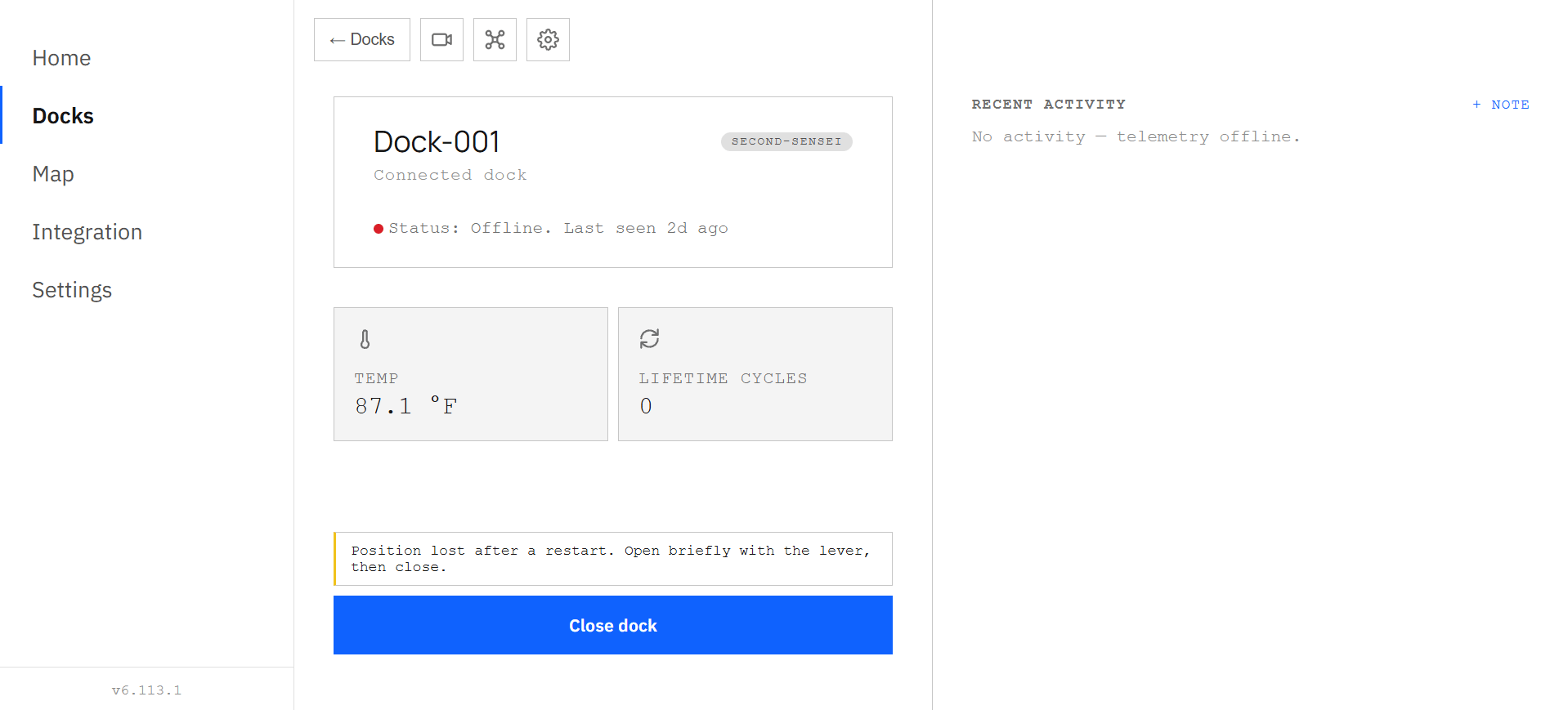
A dock's detail view. This one is out of contact and has lost its door position after a restart, so it states both plainly instead of showing a fleet that looks healthier than it is.
Recent Activity
One time-ordered feed, two kinds of entry. Every open and close lands automatically — who ran it, which way, and how long the stroke took — and your own notes slot into the same list, attributed the same way, by full name. A stroke that is still running is not in the feed yet: the status line above the control is what reads Opening… or Closing… while it runs, and the entry lands the moment the stroke settles, with its outcome.Editing a dock
Every dock you own can be renamed, recolored, given notes, assigned drones, moved, and deleted. Everyone on your team who can operate a dock can maintain its record — the name, the color, the notes, the drones, and where it sits. Only an owner or admin can delete it.- Name and color change how the card reads in Docks and Home.
- Notes are a running, timestamped log you write yourself; they appear in Recent Activity alongside the automatic entries.
- Drones (the manifest behind the toolbar’s drone button) records which airframes fly this dock, with a quantity per model. This works on every dock — real, provisioned hardware included, where the manifest is saved on the dock itself.
- Delete asks you to type the dock’s name to confirm, then removes it from your dashboard.
Location: the map lives in settings
Open the gear and the dock’s map sits below the name, model and card settings, directly above the address and coordinate fields. It is a readout, not a navigation surface: panning is locked, because the map shows where the dock is — position changes go through the fields below it, and the map recenters itself once the save has landed. A dock with no location yet shows a plain “Location not set” placeholder in the same spot. Address and latitude/longitude save independently, each with its own Save button, so you can correct one without re-entering the other. The one rule: you can’t set an address on a dock that has never had coordinates, and coordinates always come as a pair, never half a location. Neither save is optimistic: the button waits for the server to accept the change, and the map and the card catch up on the dashboard’s next re-read of the dock, within about ten seconds while the detail view is open.Understanding your dock’s identity
Every dock carries two names, and they mean different things:- The callsign (a two-word name like
brave-otter) is permanent and globally unique. For a dock whose machine was created through Outpost it is also the machine’s name on the underlying hardware platform; a dock attached to a machine that already existed keeps whatever name that machine had. Either way the callsign travels with the physical unit if it’s ever resold or reassigned. - The label you see on the card (
Dock-003, for example) is a per-workspace label. It defaults from the dock’s per-workspace ordinal (each workspace numbers its docksDock-001,Dock-002, … in provisioning order) but is freely renameable: renaming a dock only changes this label, never the callsign underneath.
Settings
Your workspace settings cover:- Profile: your name and organization.
- Members: who’s on your team, their role, and pending invites.
- Join requests: people asking to join your workspace, if any are pending.
- Appearance: light, dark, or match your system.
- Connections: linked sign-in providers.
- Your raw user id and org id, at the very bottom; support and engineering key on these constantly, and this is the one place you can copy them directly.
On a phone
The mobile dashboard is deliberately narrower in scope: it’s built for checking your fleet, opening a dock, and watching the pad camera in the field, not for administration. Registering a new dock, renaming, editing notes, managing teammates, API keys, and the drone manifest all stay on desktop. The mobile Settings page says so for the workspace-level ones — adding a dock, your profile, members, join requests and account connections are managed on desktop — rather than hiding them with no explanation; the per-dock edits simply have no settings gear on the phone.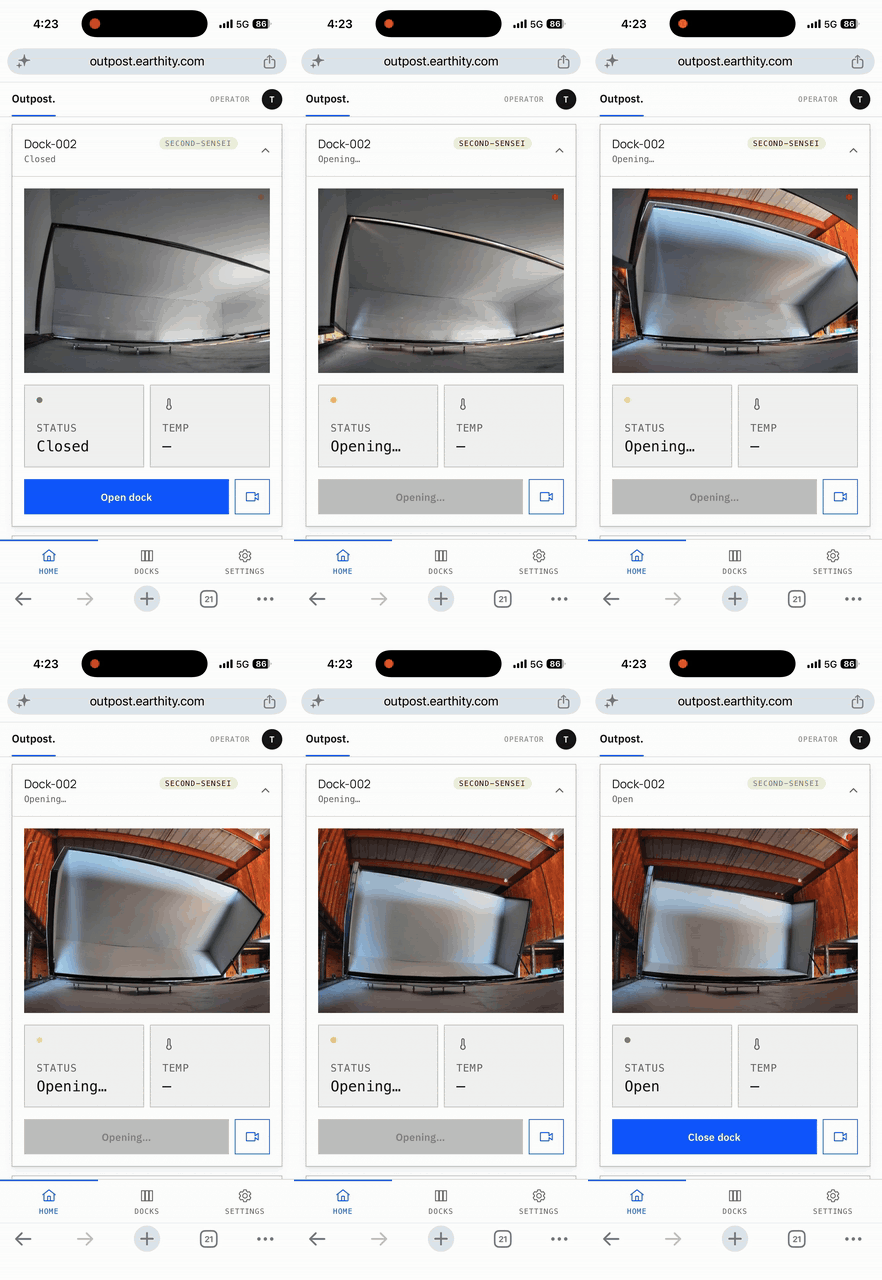
Opening a dock from a phone: confirm, then watch the pad camera until the status reads Open. Recorded on real hardware and sped up — a full open takes about 40 seconds.